Ticket System Guide

  • Hello Nostale players,


    Sometimes you will not be able to find a Gamemaster in the chat available so you have to use the ticket system for your question or for issues regarding your account. But not everyone knows how the ticket system works.

    First of all the ticket system is used for account issues, questions about the game or if you want to report someone or something.

    It is absolutely necessary to add the email address of your game account in your ticket system account.


    In this thread you can find a detailed tutorial about the options of the ticket system and how to write a ticket, answer it and view the ticket history.

    You will find the official support system of Nostale on https://nostale.support.gameforge.com/index.php?fld=en


    Table of contents

    1. Get ready to submit a support ticket
      1. Register your ticket support account
      2. Log In using your ticket support account
    2. Attach your email address to our ticket support system
    3. Attach your Steam account to our ticket support system
    4. Submit a ticket
    5. Check your ticket's status

    Credits

    Guide Made by: Yumeji

    Updated by: Morgoth and Deramon

  • Get ready to submit a support ticket

    Before you can send a ticket, you need to create an account for our ticket support system.

    Please bear in mind that your ticket support account and your Gameforge account are not the same.

    Even if you have a Gameforge Account to play already, you need to register your ticket support account seperately.

    Back to table of contents

    Register your ticket support account

    To register a new account, please follow the steps below:

    1. Click on register

      TICKETGUIDE-Register1.png
    2. Click on Register one more time

      TICKETGUIDE-Register2.png
    3. Fill in the form and click on Register again. Please always use the same email address as you use for your Gameforge Account.

      TICKETGUIDE-Register3.png
    4. A link to confirm you registration will be sent to your email address.
      Once you clicked this link, you successfully created your ticket support account and continue with the next steps.

    Back to table of contents

    Log In using your ticket support account

    Once you have successfully created your ticket support account and confirmed your email address, you can log in using your ticket support account.

    You have two possibilities to log in: either you use your email address or you use the Steam-Login

    1. If you want to use your email address, insert your login details and click on Login

      TICKETGUIDE-Login1.png
    2. If you want to use the Steam-Login, click on the Steam-Icon and follow the steps on the web page that will open up

      TICKETGUIDE-Login2.png

    Back to table of contents

  • Attach your email address to our ticket support system

    Why do you need to use the same email address?


    We have to make sure that the user who sent the ticket really is the owner of the game account.

    If the data does not match we can not process your request due to data protection restrictions.

    Back to table of contents


    How to attach your email address to our ticket support system


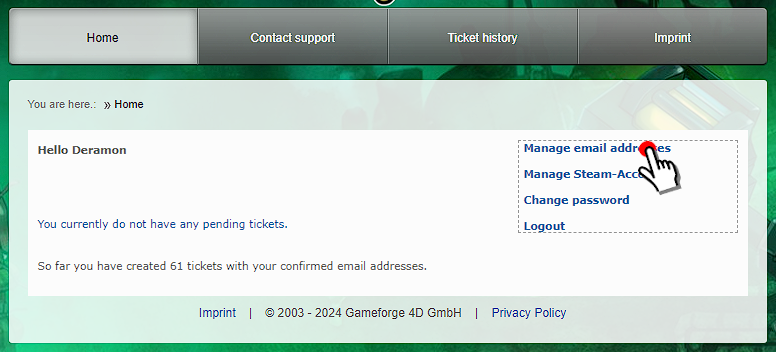
    1. You click on Home and then on Manage email addresses

      TICKETGUIDE-Addemailaddress1.png
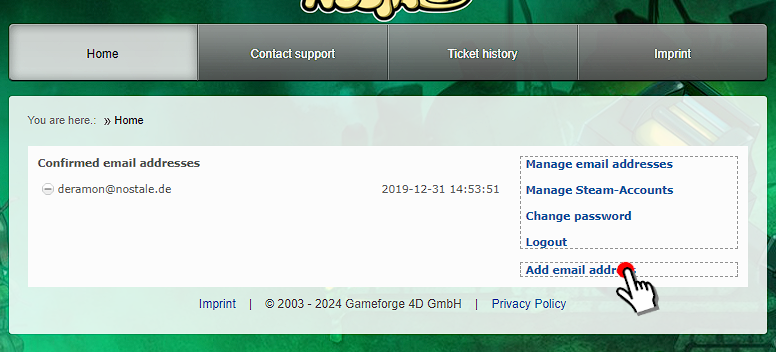
    2. You click on Add email address

      TICKETGUIDE-Addemailaddress2.png
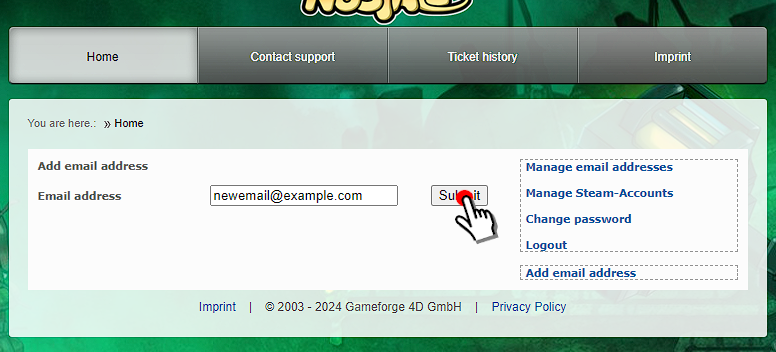
    3. Insert the email address you wish to attach to our ticket support system and click on Submit

      TICKETGUIDE-Addemailaddress3.png
    4. If the email address you want to add there is already part of a different ticket support account, which is most likely the case if you ever created one, you need to confirm again by clicking on Request confirmation email that you want to attach this email address to your new account.
      You won't lose any of your old ticket by doing so and everything will still be available afterwards.

      TICKETGUIDE-Addemailaddress4.png
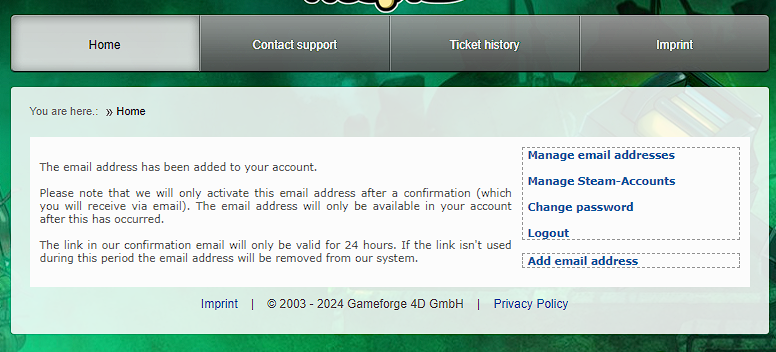
    5. The ticket support system confirm the email address has been added to your ticket support account.
      You are not required to check your email inbox and confirm again by clicking on the link that has been sent to you.

      TICKETGUIDE-Addemailaddress5.png
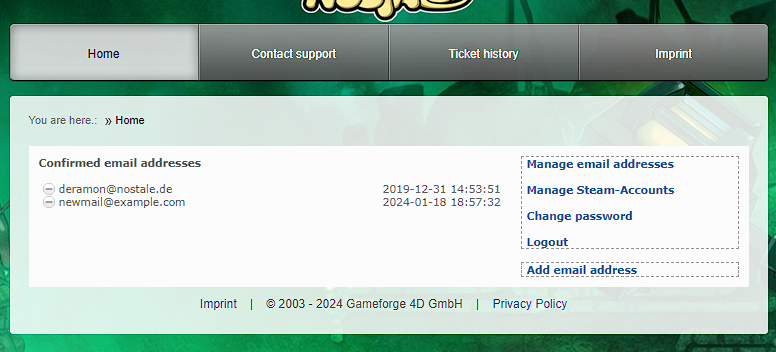
    6. After you confirmed the link that has been sent to you, your email address will be shown as a confirmed one in your account:

      TICKETGUIDE-Addemailaddress6.png

    Back to table of contents

  • Attach your Steam account to our ticket support system

    When and why do you need to attach your Steam account?


    We have to make sure that the user who sent the ticket really is the owner of the game account.

    If the data does not match we can not process your request due to data protection restrictions.

    We need you to attach your Steam Account in case you are using a Steam-only-Account without an email address.

    If your Steam Account is already linked to your Gameforge Account, you only need to have your Gameforge Account Email attached to our ticket support system, unless somebody in your ticket gives you different instructions.

    Back to table of contents


    How to attach your Steam account to our ticket support system

    1. You click on Home and then on Manage Steam-Accounts

      TICKETGUIDE-Addsteamaccount1.png
    2. You click on Add Steam-Account

      TICKETGUIDE-Addsteamaccount2.png
    3. A new page will open up where you need to log in using your Steam Account login.
      Once you did this or if you are already logged in, you will be asked whether you want to link your Steam Account to the Gameforge ticket support system.
      Click on Sign In

      TICKETGUIDE-Addsteamaccount3.png
    4. If you go back to Home and Manage Steam-Accounts, you will find your attached Steam Account's ID under confirmed Steam Accounts

      TICKETGUIDE-Addsteamaccount4.png

    Back to table of contents

  • Submit a ticket

    Once you are logged in in our ticket support system, you can submit your request by clicking on Contact support and then select either Game, Board or Payment.

    No worries, you can't really do anything wrong there. If you chose an incorrect category, we will forward your ticket to the responsible people.


    TICKETGUIDE-Submit1.png


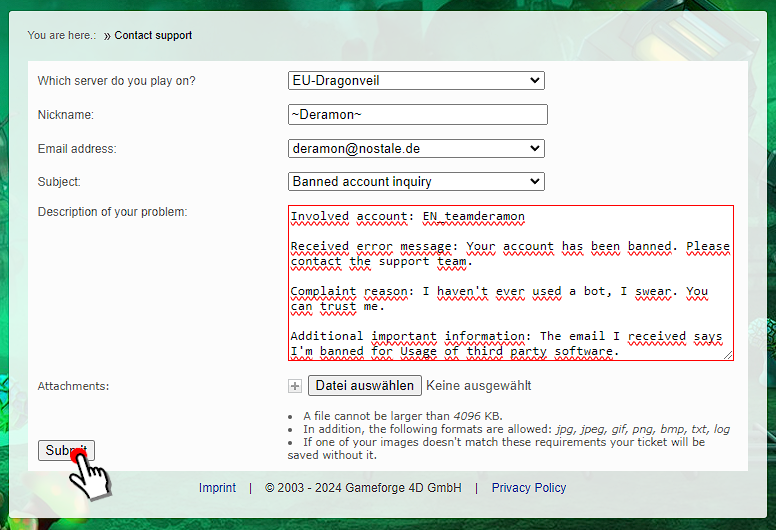
    After you chose something (I will use Game in this example), please enter all the necessary information.

    You can attach up to three attachment per answer. If you want to attach more than three screenshots, please attach three at first, then open the ticket you have just sent (don't create a new one) and attach three more screenshots in a new reply to the same ticket.


    TICKETGUIDE-Submit2.png


    The box where you can describe your problem will automatically adjust based on the subject you have selected.

    Please fill in all the required information so we can handle your ticket as soon as possible.

    Once you entered all the important information, click Send.


    TICKETGUIDE-Submit3.png

    Back to table of contents

    Check your ticket's status

    To check out the processing of your ticket, please click on Ticket history:


    TICKETGUIDE-Submit4.png


    And on the subject of the ticket you want to read:


    TICKETGUIDE-Submit5.png


    All the replies sent by our team will be visible here.

    If you want to close your ticket because you found a solution yourself, you can use the Close button on the right.

    If you want to answer to one of our replies, please use the Send reply function on the top right.

    Back to table of contents

  • Morgoth

    Added the Label Support